Updated for GTA CUE 3.0.53 · iPhone & iPad
Requirements
Start with Single CUE to select and listen to one compatible network audio channel on your iPhone or iPad. For a dependable first setup, connect by Ethernet to the audio network. Cue Mix adds eight inputs once you are ready to build a local monitor mix.
- iPhone and software
- An iPhone running iOS 17 or later, or an iPad running iPadOS 17 or later. This is the app’s minimum OS requirement, not a guarantee that every phone and adapter combination has been tested.
- Wired connection
- An iPhone-compatible Ethernet adapter or powered hub, an Ethernet cable, and a connection to the audio network switch. Match the adapter to the phone’s USB-C or Lightning connector.
- Audio source
- A reachable, compatible Dante transmitter with an active channel. The source must permit the requested unicast audio flow; not every device or network configuration is guaranteed.
- Permission
- Allow GTA CUE to access the Local Network when prompted.
- Listening output
- Headphones or another iOS audio output. If Ethernet and wired audio share the phone’s port, use a compatible hub/audio arrangement and check the actual output route.
- Power
- Enough power for the phone, adapter and any USB audio device. Use external power when the adapter or hub requires it.
Supported audio
Single CUE monitors one mono channel at a time; Cue Mix combines up to eight inputs into a local stereo monitor mix. Select 44.1, 48, 96 or 192 kHz to match the source. Supported network PCM is 24-bit or 32-bit signed integer; 32-bit float is not supported.
Wi-Fi is optional
Single CUE can use Wi-Fi through an access point bridged to the audio network, with local device traffic allowed. Cue Mix requires Ethernet and does not switch to Wi-Fi when its cable is disconnected. Cellular data or ordinary internet access does not connect the phone to the audio source. Wired Ethernet is the preferred starting point.
Active CUE listening can continue while the app is in the background or the device is locked. Start playback from a compatible external source first. A silent standby does not remain available in the background.
Quick start · Single CUE
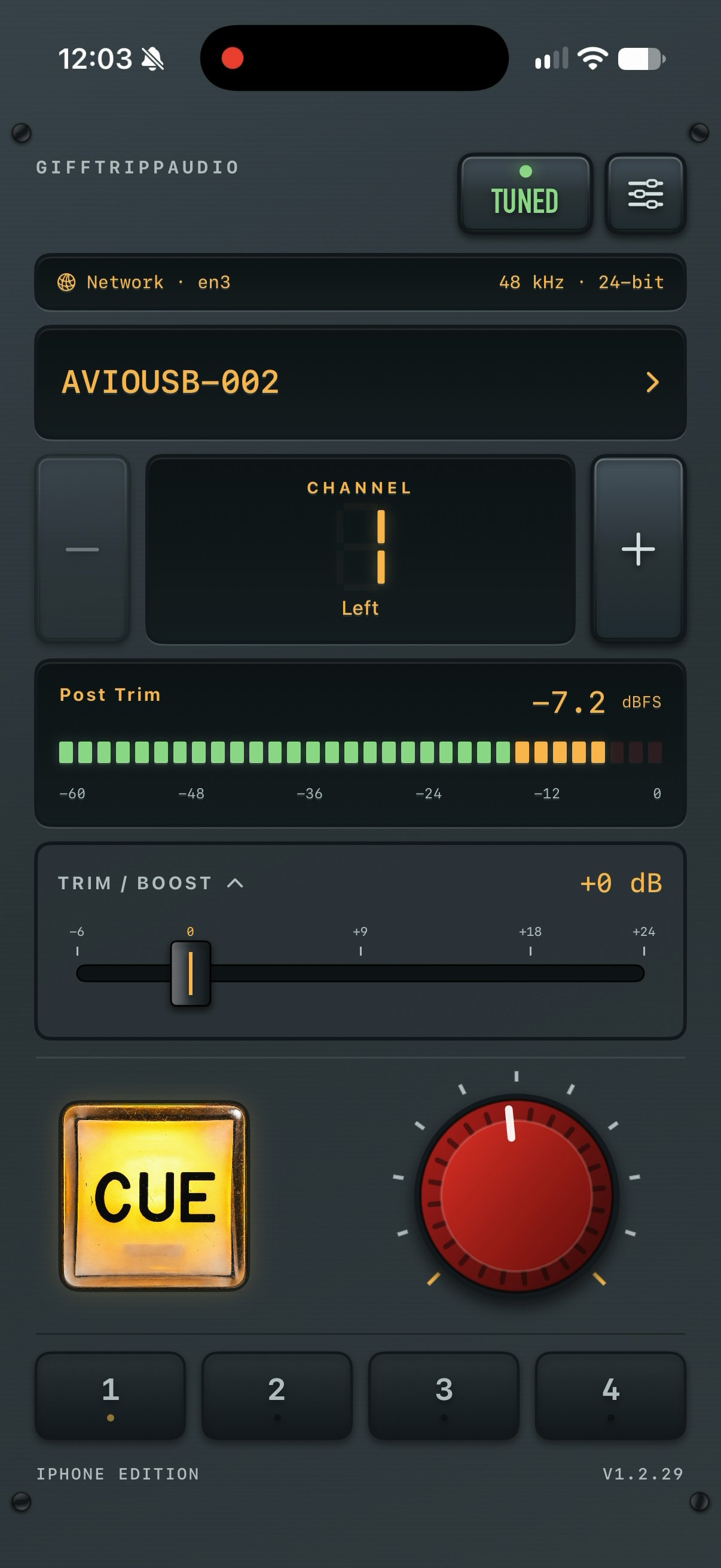
CUE lets you listen to the selected channel through your device’s audio output. Choosing a source and seeing its meter does not turn listening on: engage the CUE button, then raise the large volume knob. Trim changes the local input level; CUE volume controls your listening level. Neither changes the source’s HA gain. Start with CUE off, trim at 0 dB and a low listening volume. Confirm the incoming meter before turning up the headphones.
Connect the phone
Unlock the iPhone. Connect its Ethernet adapter to the audio switch. Attach headphones or the intended audio output. For a Wi-Fi test, join the access point connected to that same audio network.
Allow local access
Open GTA CUE and allow Local Network access. For this quickstart, leave Enable Cue Mix off in Settings → Options. If you previously denied it, enable GTA CUE in iPhone Settings > Privacy & Security > Local Network.
Choose the network
Open the settings button, then Network. Use Refresh adapters if needed. Select the interface/IP address that belongs to the audio network; do not rely on an interface name alone.
Match the sample rate
Set Sample rate to the source’s rate, then return to the main screen. This is a manual setting.
Choose a source and channel
Tap Source and select a device. Tap the channel display to choose a channel, or use +/−. Selection connects automatically; there is no separate Tune button to press.
Check the meter
Use the segmented meter to confirm incoming level. A connected indicator alone does not prove that the selected source channel contains audio. Turn Demo Mode off for a real test.
Adjust trim if needed
Trim/Boost is local to your monitor. It can be set before pressing CUE. Its range is −6 to +24 dB in 3 dB steps. It does not change the console preamp.
Listen
Press CUE so it lights, then gradually raise the volume knob. The app starts at zero volume after launch. Check both the app’s volume and the iPhone/output-device level.
Save a useful channel
Hold memory 1–4 until SAVED appears to store the source, channel and trim. Tap to recall. Master volume and CUE state are not saved. Check your network interface and sample rate separately.
Changing channels
Channel changes connect automatically and reset trim to 0 dB. Latch CUE in Options keeps listening on across a successful change only if CUE was already on; otherwise press CUE again.
Two useful controls
Tap the meter’s Pre Trim/Post Trim label to change the measurement point. Tap the Trim/Boost heading to hide its controls while preserving the setting.
Cue Mix · eight inputs
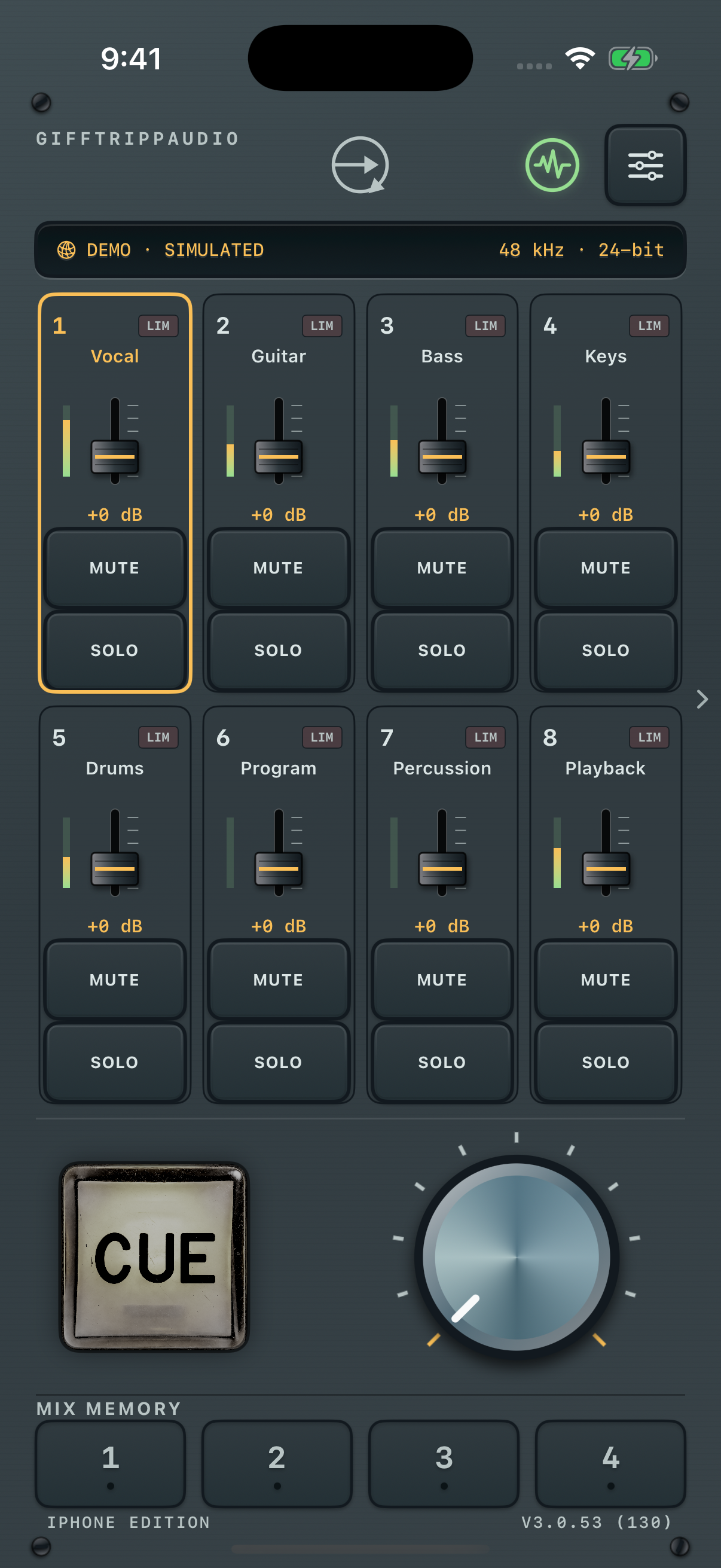 iPhone · Cue Mix · Slate
Tap the image to view full size. Demo sources and meters are simulated.Eight inputs, one local mix
Enable Cue Mix in Settings → Options. Each channel strip shows its assignment, meter, trim, Mute and Solo. The outlined strip is your current selection.
Choose sources on the detail pages
Swipe left or right in the app to reach the two-input detail pages. Select each source and channel there, adjust pan, or link a pair. Return Home to hear the full mix.
Listen and save
The CUE button engages listening; the large knob sets CUE volume. The four buttons at the bottom recall mix memories. Hold one until SAVED appears to store the mix.
Cue Mix requires Ethernet. These controls change your local monitor mix, not the transmitter’s audio or HA gain.
CUE and volume
Choose your source and channel, engage CUE, then raise the large volume knob. Trim adjusts the input before the master volume.
Home and detail pages
Enable Cue Mix in Options for eight inputs. Home plays the mix. Swipe left or right for two-input detail pages, where you choose sources and channels. An unlinked detail page auditions the selected input; a linked pair auditions both. Tap the Home symbol at the top to slide back to the mix.
Selection, Solo and links
Tap a channel panel to select it. The edge marks your selection. Solo stays on and follows your selection until you turn it off. Tap the link symbol between the detail panels to link trim, mute and Solo; existing trim offsets are preserved. Pan remains independent.
Latch CUE
Latch CUE keeps listening active across channel changes. In Cue Mix, a newly tuned input can join an already active CUE when Latch CUE is on. With it off, engage CUE again after a channel change.
Four memories
Tap a number to recall. Hold until SAVED appears to store. Cue Mix saves all eight assignments, trims, pans, mutes, Solo and links. Single CUE saves the source, channel and trim. Master volume and CUE are not saved.
Network adapter
Cue Mix requires Ethernet. Wi-Fi is available in Single CUE. Choose your adapter in Settings → Network.
Demo Mode
Demo Mode lets you explore the controls with simulated sources and meters. It does not play demonstration audio.
Your monitor controls adjust local listening; they do not change the transmitter’s audio or HA gain.
On iPad
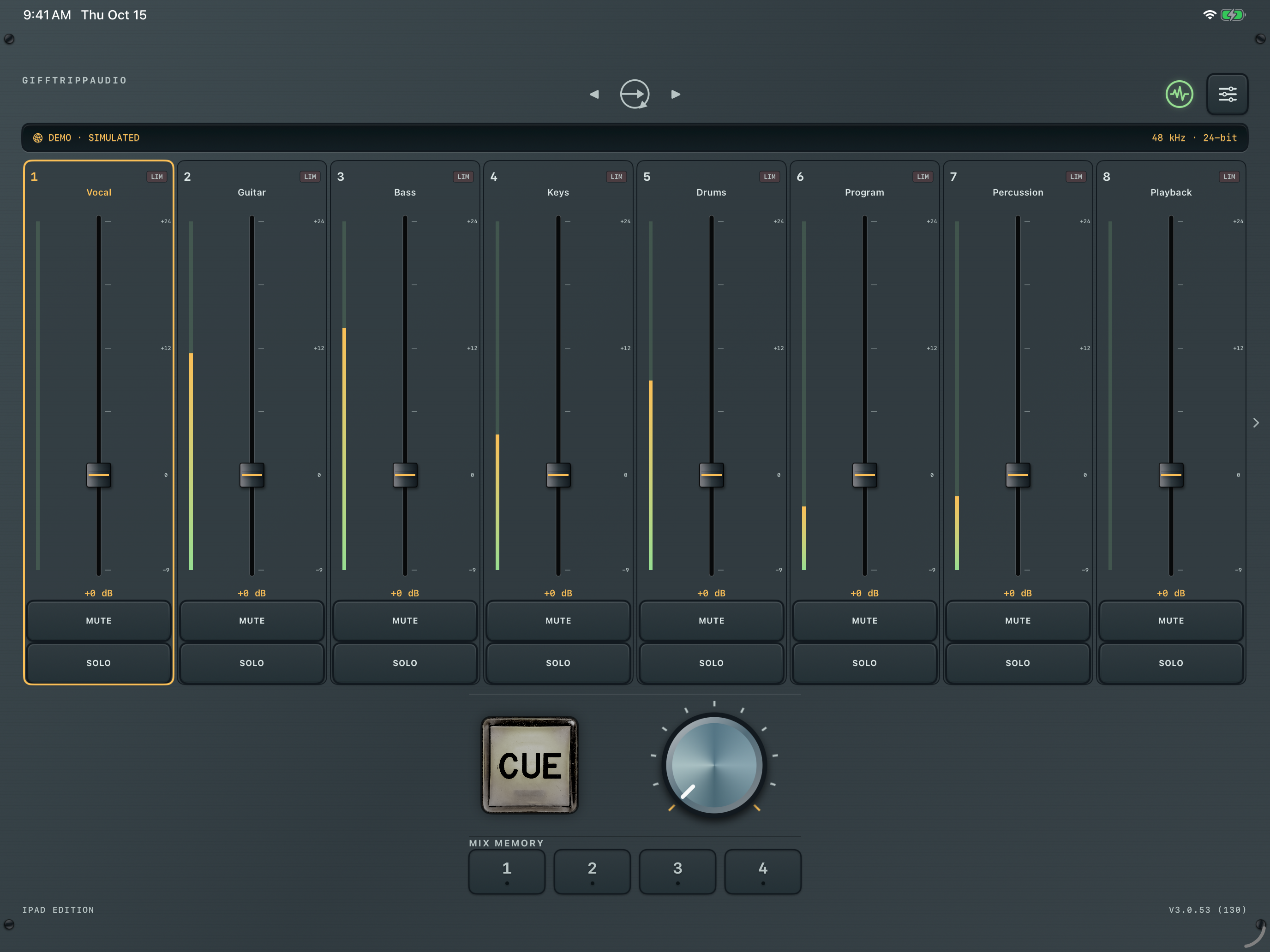 iPad · Cue Mix in landscape · Slate. Tap to view full size. Demo sources and meters are simulated.
Native iPad layout
Landscape places all eight channel strips side by side. Network, sample rate and bit depth remain visible above the mix. CUE, master volume and four mix memories sit below. The interface also adapts to portrait and resizable windows.
CUE Sharing
Compatible GTA CUE devices on the same local network can share an available source feed. Each listener keeps their own trim, pan, mute, Solo and volume.
Settings → Network → CUE Sharing shows the audio path, connected peers and how many devices you are sharing to. Sharing is coordinated automatically when a compatible feed is available.
Active CUE listening on iPhone and iPad can continue when you leave the app or lock the device. Start playback from a compatible external source first. A silent standby does not stay available in the background.
Keep a supplying device connected. Quitting its app or losing its network can interrupt listeners. Restore the supplying device and reconnect if needed. Shared feeds reduce duplicate requests; they do not create extra transmitter capacity.
Troubleshooting
Check the source, network path, incoming meter and listening output in that order. A moving meter and audible output are separate checks.
Why don’t I see CUE in Dante Controller?
CUE doesn’t require a subscription in Dante Controller to listen. Think of it as sitting by yourself at a party and listening to the conversations around you.
- No Ethernet adapter listed
- Unlock the phone, check adapter power and cable, then use Refresh adapters. Reconnect the adapter. Confirm that iOS recognizes the hardware.
- No sources appear
- Turn Demo Mode off. Check Local Network permission and the selected interface. Confirm the phone and source can reach each other on the intended audio network. For a known static system, try Advanced network scanning.
- Source is listed but connection fails
- Confirm the source is online, the chosen channel exists and the sample rate matches. Check available transmitter flows or access restrictions. Use Reconnect, then read Last Tune problem in Diagnostics.
- Connected but no level
- Confirm signal is actually reaching that transmitter channel: oscillator/routing, patch, mute and preamp gain at the source. Check sample rate. A successful connection can still carry silence.
- Level moves but there is no sound
- CUE must be lit. Raise the app volume from zero. Check the iPhone volume and headphone/output device. Read Audio output in Diagnostics. Demo Mode is silent even when its meters move.
- Audio stops after a lock or app switch
- Active CUE playback from a compatible external source can continue while locked or in the background. A silent standby does not remain active. Check that the source and any supplying CUE device are still connected. Return to the app, reconnect if needed, check the listening output and engage CUE again. Output-route changes mute listening.
- Wi-Fi breaks up or lags
- Move closer to the access point and confirm its wired connection to the audio network. Check congestion, isolation and roaming. Compare the same source over Ethernet before changing source settings.
- Memory will not recall
- The saved source and channel must be available on the current network. Sources found only through an IP-range scan must be scanned again after launch. Holding a slot saves or replaces it; tapping recalls it.
Meter or appearance surprises
If the center panel is blank, choose Meter > Segment or VU in Options. Outside metering dims the center display and controls after about five seconds; touch the screen to wake them. Hold Theme, Knob, Meter or Edge to choose, or tap to open a menu.
A red trim-frame outline means monitor protection is active. Reduce added boost if necessary. Protection is not calibrated hearing protection, and a console engineer can change the incoming level at any time.
Cue Mix cannot connect
Use Ethernet and confirm the adapter selected in Network settings belongs to the audio network. Cue Mix does not switch to Wi-Fi when the cable is disconnected. Check the source’s available feeds before reconnecting.
A shared feed stops
Check Settings → Network → CUE Sharing to see the audio path. Keep the supplying device and source connected. Active listening can continue in the background; a silent standby cannot. Restore the supplying app and network, then reconnect the listener.
Network checks and support
GTA CUE uses the interface you select. Internet connectivity and audio-network connectivity are not the same thing.
Addresses that suddenly change
An address beginning 169.254 is normally self-assigned link-local addressing when DHCP is unavailable. A 10.x.x.x address may come from a DHCP server or a manual setting. The numbers alone do not identify the server.
If a work router or another DHCP server joins the audio network, it may move the phone or access point to a different subnet. Check the phone’s selected adapter address, source address and subnet mask. An access point’s own management address does not prove that its Wi-Fi clients can reach the audio devices.
Static systems and source scanning
Settings > Network > Advanced network accepts a source IPv4 range of up to 256 addresses. Enter a known range for the audio devices and scan it. This queries sources; it does not set the phone’s IP, subnet or router, and it cannot make an unreachable subnet reachable. Configure the adapter’s addressing in iPhone Settings as supported by the adapter and network.
Wi-Fi and latency
Use a bridged audio-network access point rather than a guest network that isolates clients. Wi-Fi may be useful for quick checks, but packet loss, roaming and competing traffic can interrupt audio. Bluetooth listening can add a separate output delay.
Cue Mix requires wired Ethernet; use Single CUE for Wi-Fi checks. Network buffering and the listening output both contribute to delay. A 0 ms buffer setting does not mean zero end-to-end latency.
Information to send with a support request
- App version, iPhone or iPad model, OS version, and whether you are using Single CUE or Cue Mix.
- Source make/model, source channel, sample rate and bit depth if known.
- Ethernet adapter or access point model; whether the problem occurs on Ethernet, Wi-Fi or both.
- A Diagnostics screenshot and the saved Last Tune problem, if present. Note Audio output, Packets, Last packet, Missing frames and Buffer refills.
- What happened, whether meters kept moving, and whether changing channels or reconnecting restored audio.
Support: gifftrippaudio@gmail.com
Website: https://gifftrippaudio.com/gta-cue/support/
Apple references: Local Network permission — support.apple.com/102229. Wired accessories and unlocking — support.apple.com/111806. Updated for GTA CUE 3.0.53, including Cue Mix, CUE Sharing and active background listening.